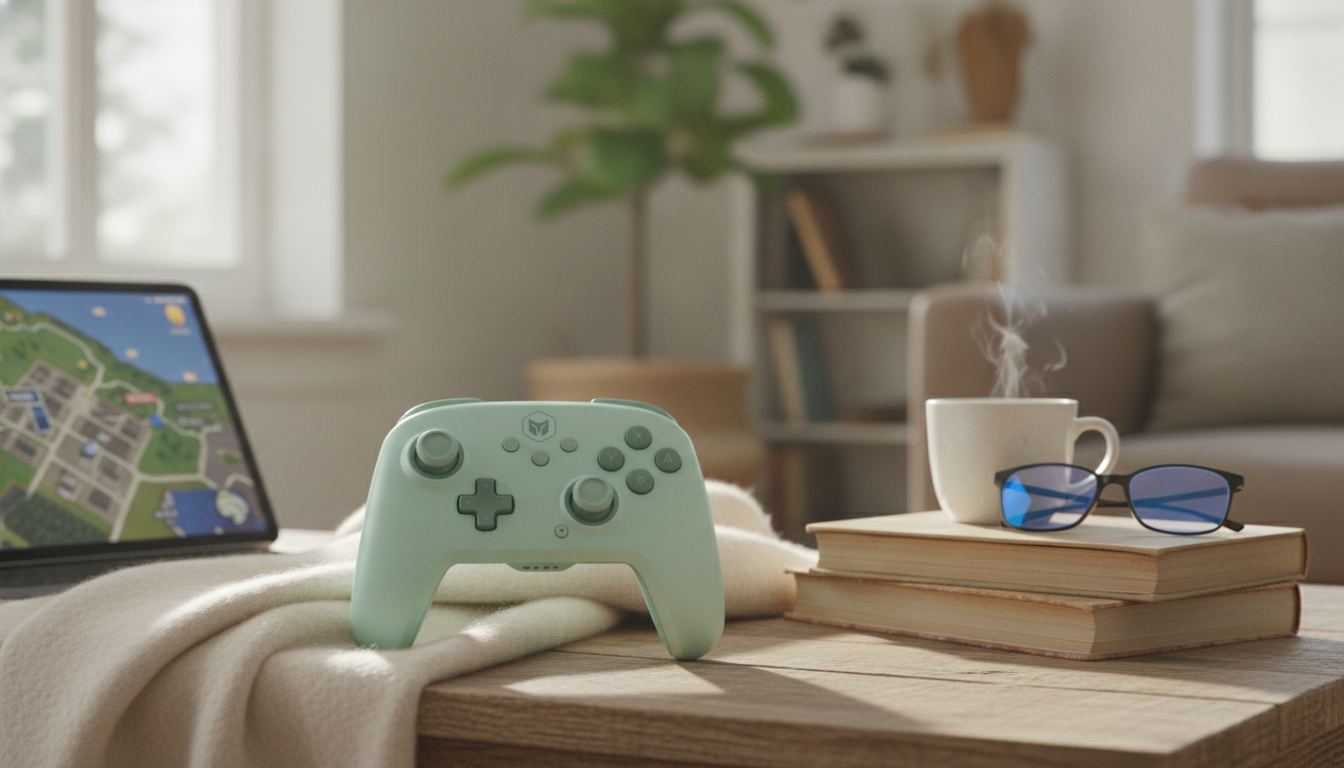
A wireless controller can be the difference between “good enough” and truly comfortable play—especially when bouncing between console sessions on the couch, a PC setup at a desk, and quick mobile gaming on the go. The Wireless Bluetooth Gaming Controller with Turbo & 6-Axis for Switch/PC/Mobile is built for exactly that kind of flexible routine: Bluetooth pairing for cable-free play, a Turbo option for repeated inputs, and 6-axis motion support for games that take advantage of tilt and gyro-style control. For more guidance, see The Console in Your Pocket: An In-Depth Review of the GameSir X5s.
If the goal is one familiar gamepad feel across multiple devices, the feature mix here focuses on the things that change moment-to-moment comfort and performance. For further reading, see Configuring controllers – Dolphin Emulator.
Turbo is most useful when a game asks for the same input again and again—especially in longer sessions where finger fatigue becomes the real “difficulty setting.”
Used thoughtfully, Turbo is less about “cheating” and more about comfort—similar to remapping controls to reduce stress on a thumb or trigger during long play nights.
Motion control is at its best when it’s treated as a fine-tuning tool rather than a full replacement for sticks. In games that support gyro aiming, small wrist adjustments can handle micro-corrections that would otherwise feel twitchy on a stick.
For the most consistent feel, keep your grip stable and relaxed—motion aiming tends to get jumpy when wrists tense up.
Bluetooth controllers are convenient, but every platform handles pairing and gamepad standards a bit differently. A quick expectations check upfront can save time later.
For official platform-specific connection guidance, see Nintendo Support. For a plain-language overview of how Bluetooth connections work, the Bluetooth SIG is a reliable reference.
Specs are helpful, but comfort comes down to how naturally your hands settle into place. A controller that “disappears” in your hands usually leads to better play—because you’re thinking about the game, not your grip.
| Item | Details |
|---|---|
| Product | Wireless Bluetooth Gaming Controller with Turbo & 6-Axis for Switch/PC/Mobile |
| Key features | Turbo function; 6-axis motion support; wireless Bluetooth |
| Platforms | Switch; PC; Mobile (game support varies) |
| Price | $52.67 USD |
| Availability | In stock (10 units) |
| Product page | View product |
Turbo behavior depends on how each game and platform handles rapid inputs, and some online or competitive modes may restrict rapid-fire features. Enable Turbo only when it’s useful and permitted, and switch it off for precision or rule-restricted gameplay.
Motion support varies by platform and by game. Switch titles commonly support gyro-style input, while PC and mobile support depends on the specific game’s controller implementation and how the controller is recognized by the device.
Fully charge the controller, toggle Bluetooth off and on, remove any old pairings, restart the device, and re-enter the controller’s pairing mode before trying again. If it still won’t connect, reduce wireless interference or test with a different Bluetooth adapter/phone to isolate the issue.


Leave a comment
You must be logged in to post a comment.